Reference
The control panel: what each of its pages does, and the operations it exposes to the agent as MCP resources and tools.
You can ask your agent Code to do anything these pages do. Open Thinkube Control when you want to see the state of things or click instead of asking.
The installer deploys Thinkube Control as a core component.
The pages
The sidebar has three groups.
Dashboard
| Page | What it shows |
|---|---|
Favorites |
The services you starred, in the order you drag them into. With no favorites, Thinkube Control opens on All Services. |
All Services |
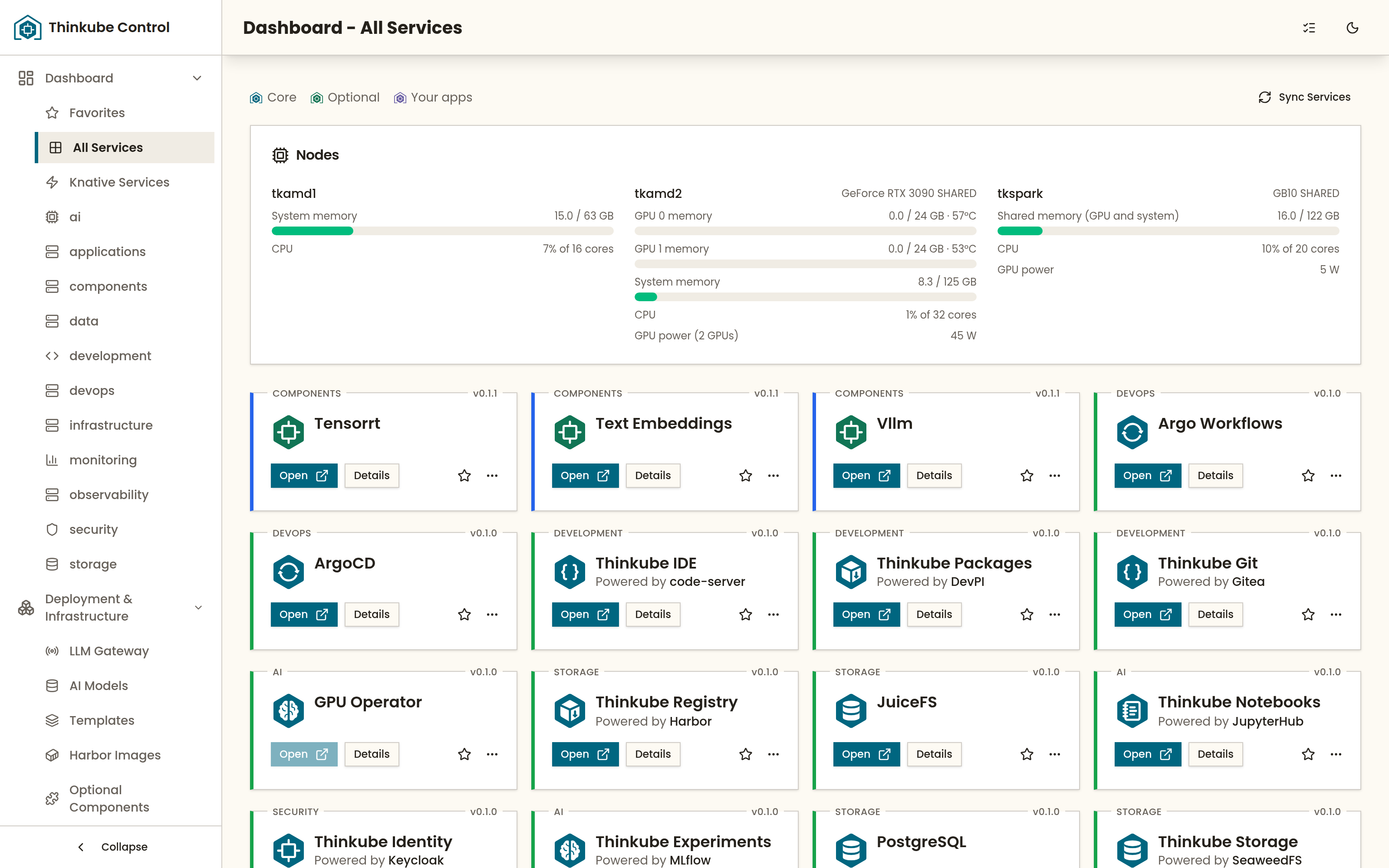
Every core component, optional component and deployed application, one card each. The logo’s colour is the type (core, optional, your apps), the bar on the left is the state, and the top border carries the category and the version. A card opens the service, shows its details, stars it, and its ⋯ menu restarts it, checks its health or switches it off and on. New services appear here automatically. With Prometheus installed, a Nodes panel above the cards shows each node’s memory, CPU and GPUs. |
Knative Services |
Applications that scale to zero when idle, deployed with |
One page per category |
The same cards, one category at a time. The categories are the ones your services declare. |
Every card’s details page shows the service’s health status and the health history Thinkube Control has recorded for it, and carries the Service Enabled switch, the same as Disable and Enable in the card’s menu. Switching a non-core service off scales it to zero; on brings it back. This is the switch that keeps an installed optional component from costing memory while you are not using it.
Deployment and infrastructure
| Page | What it does |
|---|---|
LLM Gateway |
The gateway endpoint, the GPU nodes with their slots and memory, the inference backends it has discovered, and every model in the registry with a Load and Unload control. LLM serving and models describes the mechanics. |
AI Models |
The model catalogue. Mirror a model from Hugging Face into Thinkube Storage; watch the mirror job; delete a mirrored model. |
Templates |
The template catalogue. Deploy a template by name or from a GitHub URL, follow a deployment’s progress, and publish one of your applications as a template. |
Harbor Images |
Two tabs. Mirrored Images: the public images the platform mirrored into Thinkube Registry, with their mirror date and per-architecture tags, and a control to mirror one again. Custom Images: images you define from a build file and build here. |
Optional Components |
The catalogue of optional components with their requirements and whether each is installed. Install one; remove one. An installed component is switched off and on from its card’s details page. |
Cluster Nodes |
Every node with its role, architecture, memory, GPUs and version. Add nodes and remove nodes; see Add more nodes. |
Configuration and security
| Page | What it does |
|---|---|
Jupyter Kernels |
Notebook environments built from definitions. Start from the |
JupyterHub Config |
The defaults a new notebook server starts with: node, CPU cores, memory and GPU count. The form shows what each node has, and the defaults cannot exceed it. |
Secrets |
Secrets your applications read, and which applications use each one. Changing a value restarts those applications. |
API Tokens |
Tokens for calling Thinkube Control and the LLM Gateway from outside the browser. They start with |
News & Fixes |
News about your release, and fixes for the components on your cluster, with an Apply button. A bell with a count in the top bar says when there is something new. See News and fixes. |
The operations
Every page above is also a set of operations, each reachable from the agent by name. The agent reads the full list from Thinkube Control when it starts. Ask your agent Code what it can do; it answers from the live list.
Calling it from outside the browser
The REST API is at https://control.<your domain>/api/v1, with its OpenAPI description at /api/v1/docs. Create a token under API Tokens and send it as Authorization: Bearer tk_…. The same token is accepted by the LLM Gateway.
Thinkube IDE arrives with this connection made: each agent’s MCP configuration points at https://control.<your domain>/mcp with a token the installer created.