Thinkube GitOps
Store and fetch files with the file gateway
Upload, list, download and delete files in Thinkube Storage over a REST API and a web page
- Level
- beginner
- Time
- 30 min
- Risk
- low
- Updated
- 2026-10-04
Overview
Basic idea
Applications keep files such as uploads, documents and generated results in object storage: a service that stores each file under a name and hands it back on request, with no disk to manage. In the cloud this is Amazon S3 or Google Cloud Storage. On Thinkube it is Thinkube Storage (built on SeaweedFS), which speaks the same S3 API.
The file gateway template puts a small service in front of it, so an app stores and fetches files with plain HTTP calls instead of carrying a storage client and credentials.
-
REST API. Upload, list, download and delete, with a reference for each file.
-
Web page. Upload forms and a file browser, for people.
-
One bucket per tenant. Files are grouped by a name you choose, such as a project or a customer.
What you’ll accomplish
You deploy the file gateway as files, store a file through the API and through the web page, list it, fetch it and delete it.
What to know before starting
Required
-
Asking your agent in Thinkube IDE to do things on the platform.
Optional
-
Thinkube GitOps, to see how the template becomes a running app.
Instructions
Step 1. Deploy the template
Deploying the template creates your own repository and builds and deploys the gateway at files.<your domain>.
Ask your agent:
› make an app called files from the SeaweedFS template
The template is https://github.com/thinkube/tkt-seaweedfs.
Or by hand: in Thinkube Control open Templates, choose tkt-seaweedfs, name it files and deploy.
Expected output:
status: success
output: Deployment completed successfully
duration: 155.3
Step 2. Check it reaches Thinkube Storage
Ask your agent:
› check files' health
Expected output:
{"status":"healthy","seaweedfs":"connected"}
Step 3. Store and fetch a file through the API
Each tenant gets its own bucket, tenant-<tenant>. An upload answers with a full_ref, the reference you store in your app to fetch or delete the file later. Put {doc_id} in the prefix to give each upload its own new folder.
Ask your agent:
› upload a note to files for tenant docs under documents/{doc_id}/, list it, fetch it and delete it
Expected output, from the reference run (one run on the test cluster this page was checked on):
$ curl -F tenant=docs -F 'key_prefix=documents/{doc_id}/' -F files=@note.txt https://files.thinkube.com/api/upload
{"doc_id":"7bfa298d-…","files":[{"bucket":"tenant-docs",
  "full_ref":"tenant-docs/documents/7bfa298d-…/note.txt","size":20,"content_type":"text/plain"}]}

$ curl https://files.thinkube.com/api/download/tenant-docs/documents/7bfa298d-…/note.txt
hello from the docs

$ curl -X DELETE https://files.thinkube.com/api/tenant-docs/documents/7bfa298d-…/note.txt
{"deleted":"tenant-docs/documents/7bfa298d-…/note.txt"}
The calls:
| Call | Does |
|---|---|
|
Stores the files and answers with each one’s |
|
Lists the tenant’s files, with size and last change. |
|
Returns the file. |
|
Removes the file. |
|
Creates the tenant’s bucket ahead of time. An upload creates it too. |
|
Checks the connection to Thinkube Storage. |
Step 4. Store a file through the web page
Open https://files.<your domain>/. The page lists sample upload forms. Choose File Upload, type the tenant docs, add a file and press Upload. The page answers with the document id and the file’s reference.
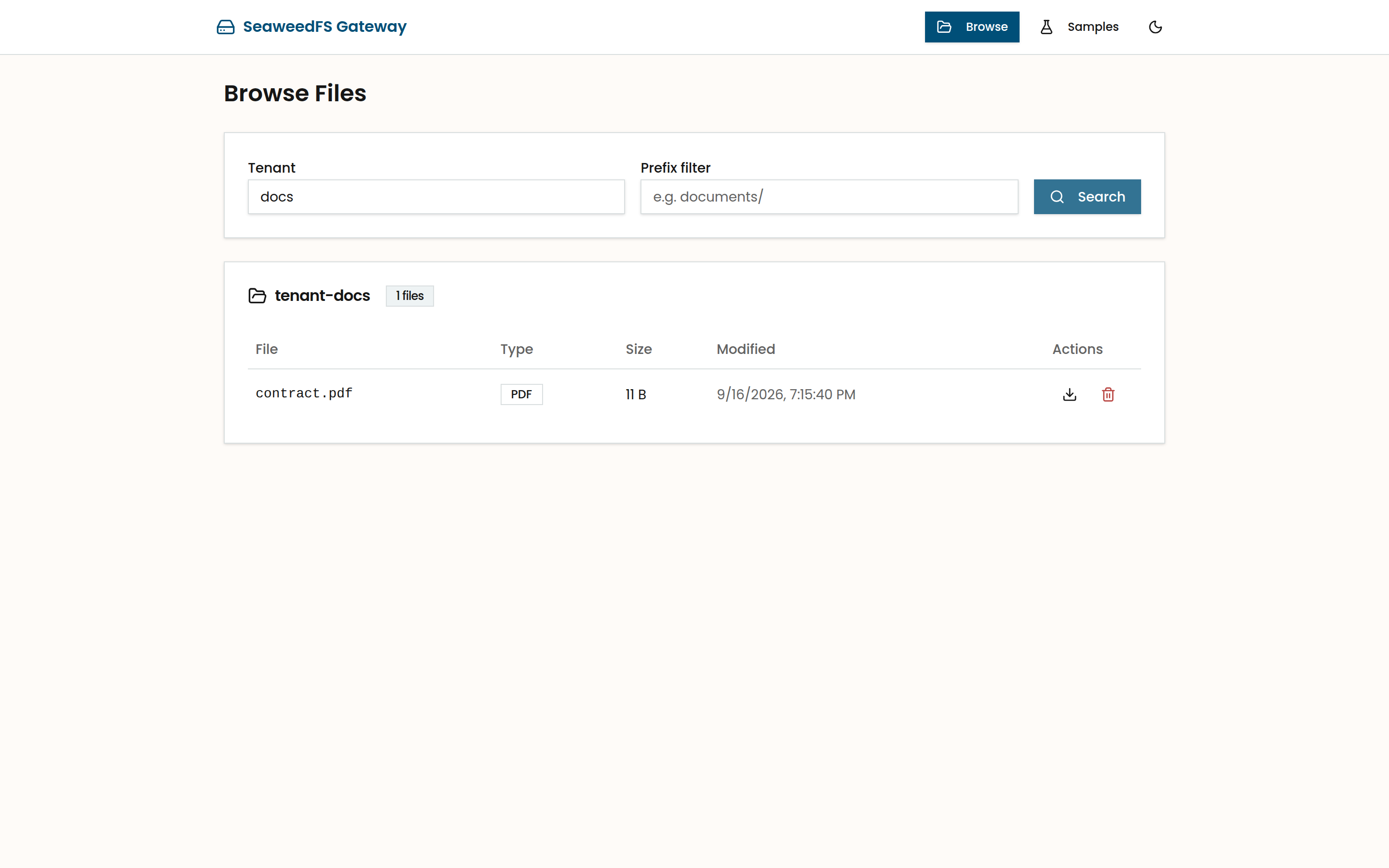
Step 5. Find it in Browse
Choose Browse, type the tenant docs and press Search. Each file has a download and a delete button.
Step 6. Next steps
To undo: Delete the app in Thinkube Control.
-
Deploy a serverless service: a service that runs only while it is being called.
-
Build a web app from the template: a full-stack app with a database and a login.
-
Templates catalog: every template you can deploy.
Troubleshooting
| Symptom | Cause | Fix |
|---|---|---|
Opening |
These pages open from the app’s menu |
Open |
After an upload the reference reads |
The Storage prefix field was empty, so the name starts with an empty folder |
Fill Storage prefix, for example |
The gateway answers anyone on your tailnet without a login, so store only files every device on your tailnet may read.